How to Use Google Chrome Profiles to Give Claude the Superpower to Log In as Different Users Without Exposing Passwords

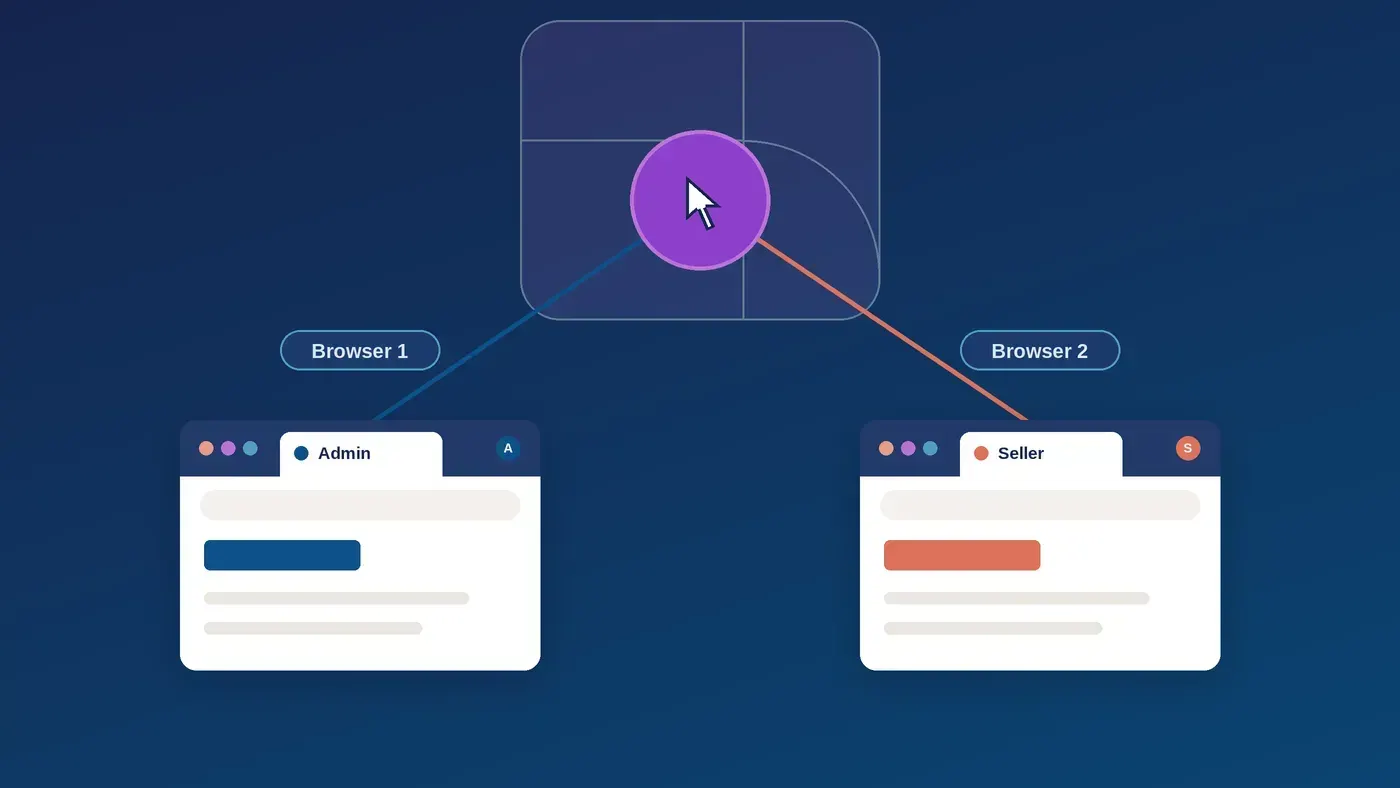
Have you ever prompted Claude to check a feature in the browser?
Take Jira ticket SP-12345.

Use the Claude extension in Chrome to navigate to the branch preview
and verify whether all acceptance criteria are met.
It’s like magic. ✨
Claude opens the browser, clicks around and reports back the results.
But what if we need to verify a feature as a specific user? Or as several users, each with a different role and a different login?
And how do we log in as a user without handing Claude any password?
At Showpad, checking features as different users is a daily reality.
Admins upload content and configure their Showpad instance in the Admin App. Sellers then use that content in the Seller App. Every change that is shipped has to look right through both sets of eyes in both applications.

In just a few minutes, you’ll learn exactly how you can use Chrome Profiles to let Claude act as different users, all on its own, without ever sharing a single password.
So let’s get started! 🙌
What didn’t work
First we tried naming the Chrome browser windows by right-clicking the top Chrome window bar and choosing “Name window…”.
We named our first Chrome window “Admin” and our second Chrome window “Seller”.
When we asked:
Use the Claude extension in Chrome.

In the Chrome instance named "Admin":
- go to https://localhost:4200
- reload the page
- time how long it takes to load

In the Chrome instance named "Seller":
- go to https://localhost:8080
- reload the page
- time how long it takes to load

Thank you!
Claude replied:
I only see one connected Chrome browser, named “Browser 1”.

I don’t see any named “Admin” or “Seller”.
It turns out that Claude cannot access the Chrome browser window name.
So if you have 3 different Chrome windows, each with their own unique names and 5 tabs, Claude sees all the Chrome tabs across all Chrome windows as 15 tabs of a single Chrome browser named “Browser 1”.
Then we tried with incognito Chrome windows but the results were the same.
Until finally, we discovered a way to do it 🎉
The breakthrough: one Chrome profile per login
Think of Chrome profiles as separate desks in the same office.
Each desk has its own drawer of keys (cookies and logins), its own tools (extensions) and its own nameplate.
Chrome windows, on the other hand, are just papers on the same desk. However many we spread out, they all share the same drawer of keys.
Claude can walk from desk to desk. But it can’t tell two papers on the same desk apart.
That’s the whole trick. 💡

What works: setting up the profiles
Here’s the setup that does work. We’ll use two roles as an example: Admin and Seller.
1. Create a profile for each role. Click the profile icon in Chrome, then Add. Name one “Admin” and one “Seller”.
2. Install the Claude extension in each profile. Extensions live per profile, so a brand-new profile won’t have it yet.
3. Sign in to Claude in each extension. Use the same Claude account in every profile.
4. Sign in to the site you’re testing, with the right role. For example, sign in to Showpad as an admin user in the Admin profile and as a seller in the Seller profile.
5. That’s it. Each profile now shows up to Claude as its own connected browser. 🚀

Asking Claude to use a specific profile
Now we can simply name the profile in our request:
In the Chrome browser with profile Admin, open the team settings page
and check that the "Invite users" button is visible.

Then do the same in the Chrome browser with profile Seller and confirm
that the button is hidden.
Claude picks the matching browser for each step and switches between them on its own.
No more logging in and out. 🙌

Things to know
Claude stays out of our tabs. It opens its own tab group in each profile and closes it when it’s done. Our existing tabs stay exactly where we left them.
Logins are on us. If a profile isn’t signed in to the site, the page will redirect to the login screen. We sign in ourselves so that Claude never needs to know passwords and our passwords never enter the Claude context. That keeps everything secure. 🔐

Summary
Chrome profiles are like separate desks: each has its own logins and its own copy of the Claude extension.
Window names, incognito windows and extra windows all live on the same desk, so Claude can’t tell them apart.

Give each role its own profile, install and sign in to the Claude extension in each one and log in to your app with the right user.
Then just name the profile in your prompt and let Claude do the switching.
Keep coding, keep testing and keep smiling! 😊🚀
Have a great one! ☀️
Thank you!
🙏 🙇