How to use Nx MCP in Gemini CLI

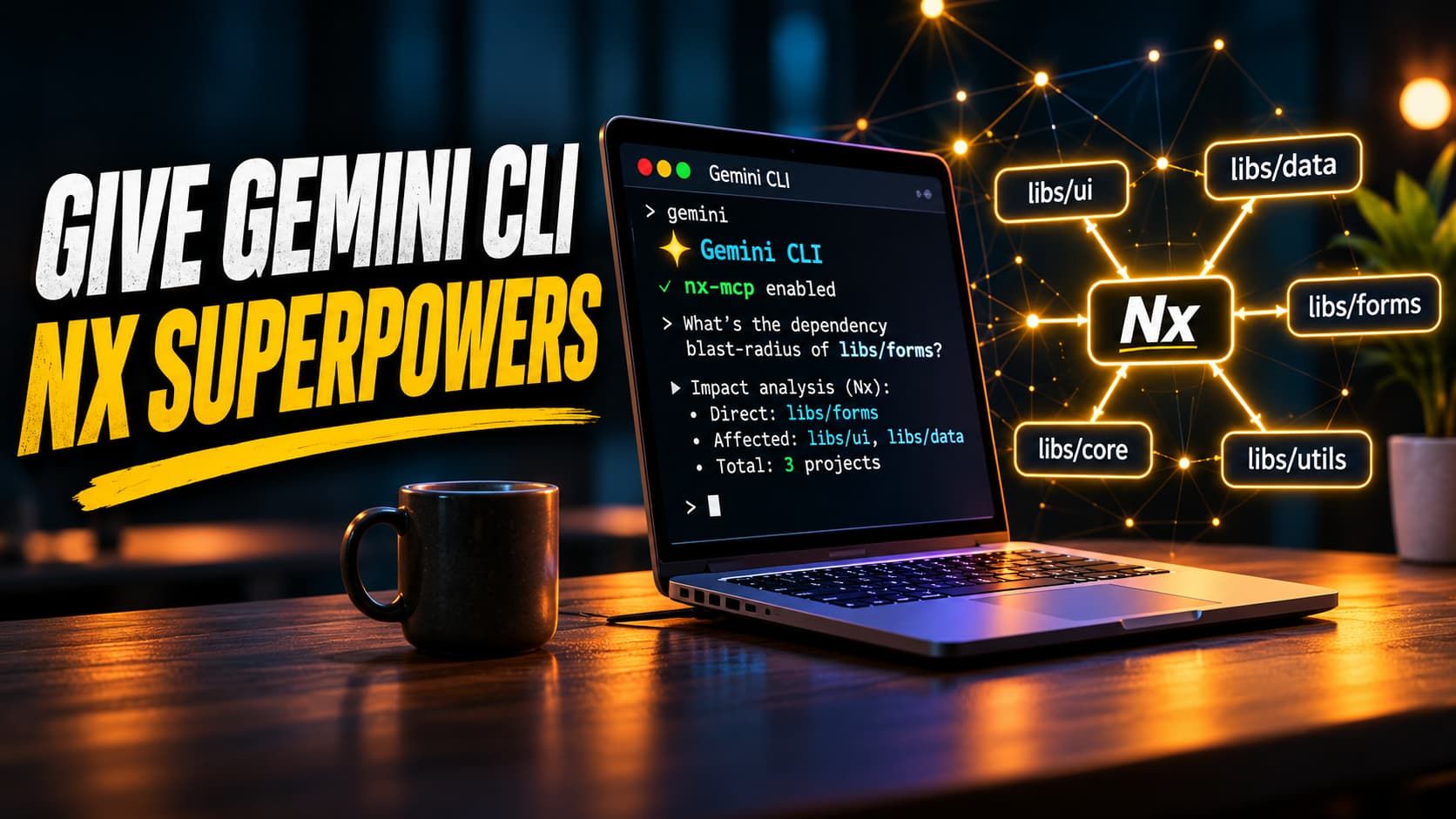
Have you ever found yourself wishing your IDE's built-in AI chat could do a bit more?
While they're great for quick questions, they can sometimes feel like a closed box.
What if you want to pipe the AI's output into another tool, or script a complex, automated workflow?
This is where a command-line interface (CLI) for your AI tool can truly shine, offering a level of power and flexibility that a simple chat window can't match.
In this article, we’ll explore how to combine the might of the Gemini CLI with the contextual intelligence of an Nx workspace.
Let's get started!
Step 1: Install Gemini CLI
First, we need to install Gemini CLI on our machine:
npm install -g @google/gemini-cli
Next, go the the Google AI Studio page, generate a new API key and configure it as an environment variable:
export GEMINI_API_KEY="YOUR_API_KEY"Now, we can run the gemini command:
geminiwhich presents us with an interactive Gemini CLI:
Tips for getting started:
1. Ask questions, edit files, or run commands.
2. Be specific for the best results.
3. Create GEMINI.md files to customize your interactions with Gemini.
4. /help for more information.

Using: 2 MCP servers (ctrl+t to view)
╭────────────────────────────────────────────────────╮
│ >   Type your message or @path/to/file                                    │
╰────────────────────────────────────────────────────╯
that we can use anywhere on our filesystem to ask Gemini questions about the files or perform operations on them.
Please describe the architecture of the codebase. Thank you!How cool is that!
Step 2: Configure the Nx MCP Extension
Now for the really exciting part!
Let's teach our Gemini CLI how to understand our Nx workspace.
We'll do this by manually configuring the CLI to use the Nx Monorepo Command Platform (MCP). This process gives Gemini a deep understanding of your project graph, dependencies, and scripts. Think of it as giving your AI assistant a map of your entire codebase.
You'll need to locate your Gemini CLI configuration file. This file, named settings.json, is usually found in a .gemini directory within your user's home folder (e.g., ~/.gemini/settings.json on macOS/Linux or C:\Users\YourUser\.gemini\settings.json on Windows).
Open this file in your favorite text editor and add the following configuration:
{
  "mcpServers": {
    "nx-mcp": {
      "command": "npx",
      "args": ["nx-mcp@latest"]
    }
  }
}
This JSON snippet tells the Gemini CLI that to use the nx-mcp server, it should execute the command npx nx-mcp@latest. This ensures you're always working with the most up-to-date version of the tool.
After saving the file, the Gemini CLI will automatically know how to get the context it needs from your Nx workspace.
Step 3: Verify Everything is Working
How can we be sure our new setup is working correctly?
Let's check! First, navigate to the root directory of any Nx workspace in your terminal. Once you are there, start the Gemini CLI in interactive mode by simply typing gemini.
To see if our Nx MCP extension is active, we can use a special command. Type /mcp list and press enter. This command lists all the "command providers" that are currently active.
You should see nx-mcp in the output list.
This confirms that Gemini is now connected to your Nx workspace and ready for your questions!
Step 4: Ask an Intelligent Question
It's time to put our supercharged CLI to the test. The true power of this integration comes from asking complex questions about your workspace using natural language. For instance, have you ever needed to know the potential "blast radius" of changing a shared component? Instead of manually tracing every dependency, you can just ask.
Try asking a question like this:
Which applications are affected when libs/shared/ui/src/lib/button.tsx is changed?Gemini, now powered by the Nx MCP extension, will analyze your project's dependency graph and give you a precise list of all the applications and libraries that depend on that file.
This isn't a simple text search; it's an intelligent analysis of your monorepo's structure. It’s a fantastic way to save time and prevent those "oops, I didn't realize that would break" moments.
Summary
To wrap things up, we've seen how a CLI-based AI tool can open up new possibilities for your workflow.
We walked through the simple steps to install the Gemini CLI, enhance it by configuring the Nx MCP extension, and verify that it’s ready to go.
The real magic is in asking context-aware questions about your Nx workspace, transforming how you understand and navigate your own codebase.
Go ahead and give your terminal superpowers! 💪
Have a great one! ✨
Thank you!
🙏 🙇